
Desktop Charging Station Buying Guide for Cable-Managed Work Desks
A cable management desktop charging station works best when you choose it around your desk layout, not as an afterthought. The right setup shortens cable runs, keeps everyday devices within reach, and prevents the usual mess of slack, crossovers, and chargers drifting across the desk.
Many buyers start with port count. That is usually backward. A better review starts with placement, cable direction, and desk movement. Once those are clear, you can decide how many USB-C and legacy ports you actually need.
If you are building a clean charging zone, two questions matter most: where the station will live every day, and how cables will travel from the station to the devices you charge most often. A compact laptop-and-phone setup needs something different from a wide workstation with a riser, second monitor, or sit-stand frame. The best choice fits those habits without forcing cable workarounds later.
Cable Management Desktop Charging Station Placement Comes First
The best charging station placement is usually off-center, not in the middle of the desk. Center placement may look tidy in a product photo, but in real use it competes with your keyboard, notebook, and mouse space. On most desks, a rear corner or the back edge is more practical because it lets cables leave the station in one direction instead of spreading across the entire surface.
If your desk changes height, placement matters even more. A standing desk or converter adds movement, and movement exposes weak cable planning fast. Cables that seem fine while seated can pull tight, hang awkwardly, or snag once the desk rises.
That is why the desk itself should influence your buying decision. These examples show how desk type affects charging station placement and cable routing:
| Product | Relevant desk trait | Price | Best fit for charging setup |
|---|---|---|---|
| Uncaged Ergonomics WorkEZ Adjustable Standing Desk Converter | Designed to convert any table to a stand-up desk for laptops and lightweight desktop computers | $34.99 | Basic laptop charging zone on a tight budget |
| VIVO 32 inch Desk Converter, K Series | On-demand standing with a desk riser | $169.99 | Shared sit-stand workspace where cable paths must move cleanly |
| FlexiSpot EN1 One-Piece Standing Desk | One-piece desktop with a rock-solid surface for home offices and creative studios | $169.99 | Clean fixed charging area with fewer seams and less wobble |
| FlexiSpot 71"x32" Large Dual Motor Electric Standing Desk | Large work surface and dual motor lift for users who switch between sitting and standing | $259.99 | Multi-device charging with room to separate work and power zones |
On a small converter like the WorkEZ, the station should stay near the back so it does not consume limited work space. On a larger platform like the FlexiSpot 71"x32", you can dedicate one side of the desk to charging without sacrificing usable space. That is a better fit for anyone charging a laptop, phone, earbuds, and accessories throughout the day.
The VIVO converter sits in the middle. It adds useful movement, but it also means your setup must tolerate repeated height changes. For the cleanest result on a moving desk, choose a station that lets cables exit neatly toward the rear and leave enough slack for motion without creating loops on the desktop.
Choose Ports and Cable Direction for Your Layout
Port count matters, but port direction matters more than many buyers expect. A charger can have enough outputs and still create clutter if every cable fans out across the desk. Good desktop charger cable organization starts with how cables leave the unit and where devices naturally rest while charging.
Think in zones:
Primary zone: laptop, phone, or tablet you charge daily while working.
Secondary zone: earbuds, smartwatch, power bank, or spare phone.
Occasional zone: guest devices or items you charge only from time to time.
If your primary zone is near your dominant hand, avoid routing every cable through that side. It often interferes with mousing and writing. A better approach is to place the station behind or slightly opposite your working hand and bring only the one or two cables you use constantly into the foreground.
This matters even more on narrower desk converters. The Uncaged Ergonomics WorkEZ is budget-friendly, but it is meant for lighter setups. That makes cable discipline more important because there is less room to hide clutter. By contrast, the FlexiSpot EN1 and the larger FlexiSpot dual motor desk give you more freedom to separate a work zone from a power zone.
For USB-C cable management, be honest about how many devices you charge at the same time. Many buyers overestimate this. If you usually charge a laptop and a phone during work hours, then add earbuds overnight, a cleaner two-device daytime layout may work better than a crowded multi-cable setup that is technically more flexible but messier every day.
What to compare before you buy
How many devices need to stay connected during active work, not just charge eventually
Whether your desk is fixed-height, a converter, or a full standing desk
Whether cables can leave the charger toward the rear edge instead of across the front
How much open surface you are willing to dedicate to charging
Select Cable Lengths That Reduce Slack
Extra-long cables can feel safer because they seem more versatile. In practice, they are one of the biggest causes of desk clutter. A cable management desktop charging station looks organized only when each cable is long enough for its route and no longer.
Start by mapping each run. A phone charging on a stand beside your monitor needs a different length from a tablet stored on the far side of a wide desk. On a compact setup, shorter cables usually look cleaner. On a sit-stand desk, however, you need enough length to support the full travel of the work surface.
Desk choice changes the answer. The FlexiSpot 71"x32" Large Dual Motor Electric Standing Desk gives you room, but the larger footprint can tempt you to run long cables everywhere. Resist that. Save longer runs for devices that truly live farther from the station. Everything else should use the shortest practical route.
The VIVO 32 inch Desk Converter creates a different tradeoff. Because it adds vertical movement on top of another table, cable paths need to handle motion smoothly. Too short, and the cable strains when raised. Too long, and it droops or catches when lowered. On converter setups, test cable travel through the full height range before you commit to clips or sleeves.
A simple rule works well: choose cable length for the route, not for the desk category. Even on a large desk, not every device needs a long cable. Even on a compact desk, one device may need extra reach if you pick it up during calls.
Keep Everyday Devices Within Reach
An organized charging station fails if it is so hidden that you stop using it for daily devices. Buyers often overvalue a clean look and undervalue reach. The best setup keeps high-use devices easy to dock and remove with one hand.
Your phone, earbuds, or tablet should usually stay close to your workflow. Less frequently charged items can sit farther back or off to the side. If everything is equally accessible, the desk often becomes equally cluttered.
Here is how the desk examples break down in practice:
Uncaged Ergonomics WorkEZ Adjustable Standing Desk Converter: a practical budget starting point at $34.99 if you are charging only a laptop and perhaps one small device. It is less suited to a crowded charging setup because limited space makes clutter obvious fast.
FlexiSpot EN1 One-Piece Standing Desk: a strong fit at $169.99 for a simple, clean setup. The one-piece desktop and stable surface make it easier to define a charging area that does not feel improvised.
VIVO 32 inch Desk Converter, K Series: a sensible choice at $169.99 for buyers who want on-demand standing without replacing the whole desk. It rewards careful charging station placement and cable slack planning.
FlexiSpot 71"x32" Large Dual Motor Electric Standing Desk: the easiest of the group at $259.99 for multi-device workstations, especially if you want clear separation between active work and power accessories.
More desk space is not automatically better. If you rarely charge more than two devices, a larger desk will not improve your routine by itself. It helps only if you use that space deliberately.
Maintain Desktop Charger Cable Organization Over Time
The hard part of desktop charger cable organization is not the initial setup. It is keeping the system tidy after weeks of real use. Cables drift. Temporary devices become permanent. A neat arrangement gradually turns into a pile unless every cable has a purpose and a place.
Maintenance gets easier when your charging station supports a few practical habits:
Keep daily cables visible and limited. If you use a cable every day, keep it accessible. If you use it once a week, store it outside the main work path.
Review device count regularly. If a cable has not been used recently, remove it from the desktop. Empty ports create less mess than idle cables spread across the surface.
Recheck charging station placement after workflow changes. Adding a monitor arm, switching from seated work to standing, or bringing in a tablet can turn a once-good location into an awkward one.
Watch for friction points. The front edge of the desk, the side near your writing hand, and any moving section on a converter or standing desk are common trouble spots.
A charger alone will not solve clutter. It is only one part of the system. The desk footprint, workstation movement, and cable routes determine whether the setup stays organized after the first week.
Across the desk options above, the FlexiSpot EN1 is often the strongest overall value if you want a straightforward standing desk at $169.99. The FlexiSpot 71"x32" dual motor model at $259.99 makes more sense if you need room for several devices. The VIVO converter is practical if you want sit-stand flexibility without replacing your desk, but it demands more planning. The WorkEZ is the most budget-friendly entry point and works best for light, simple charging needs.
Keep these takeaways in mind:
Choose the charging station location before you choose the charger
Judge port layout by cable direction, not just by port quantity
Match cable length to the exact route to reduce visible slack
Keep your most-used devices close and move occasional chargers farther out
If your desk moves, test every cable path through the full range of motion before finalizing the setup
Related Resources
Related Products
 USD 52.48
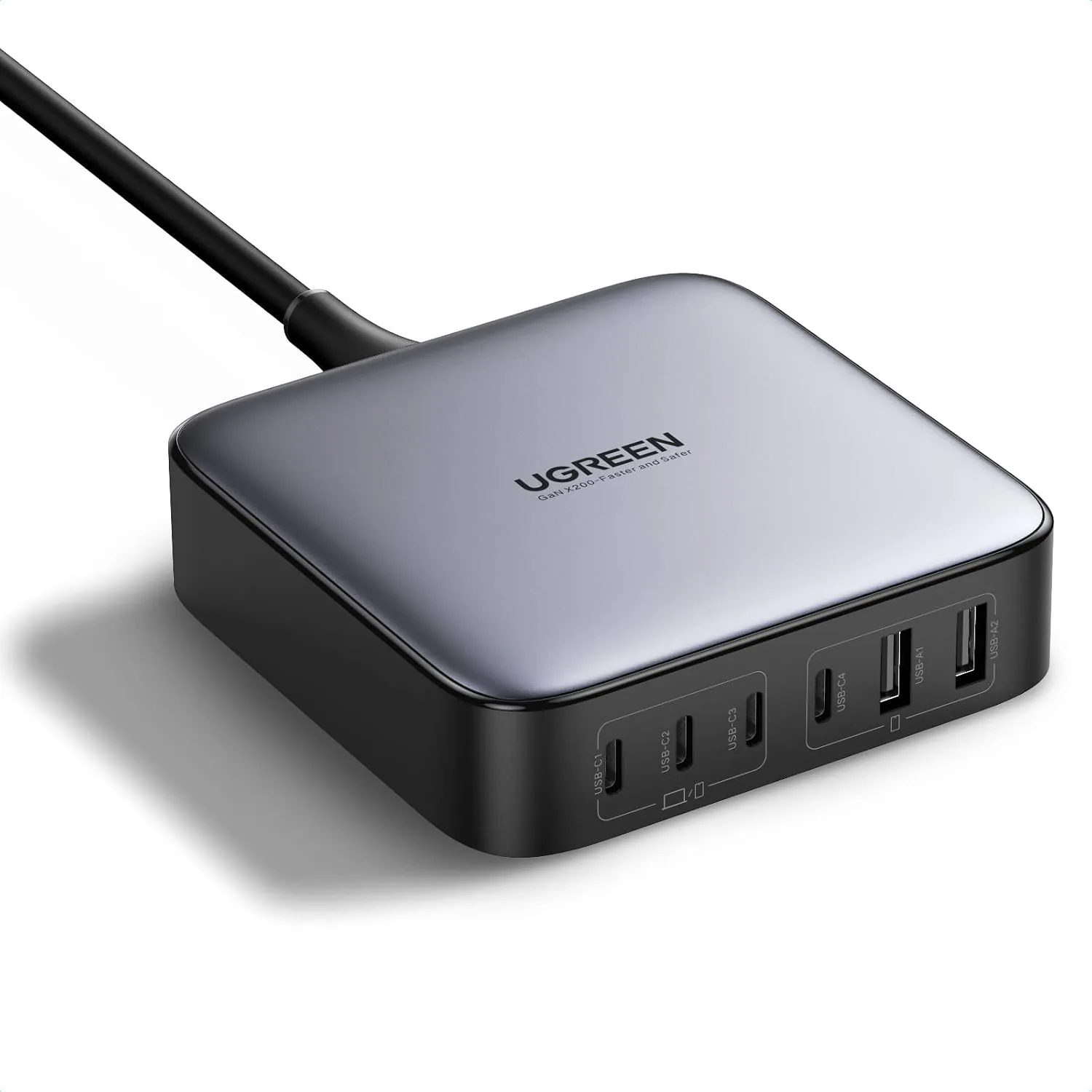
UGREEN Nexode 200W GaN USB C Charging Station, 6-Port Desktop Charger for MacBook Pro/Air, iPad Pro/Air, iPhone 17/16/15 Series, Galaxy S25/S24 Ultra, Pixel 10/9, Steam Deck
High speed charging: Fully charge a 16in MacBook Pro in 1,5 hours, with the latest GaN ch…
View Details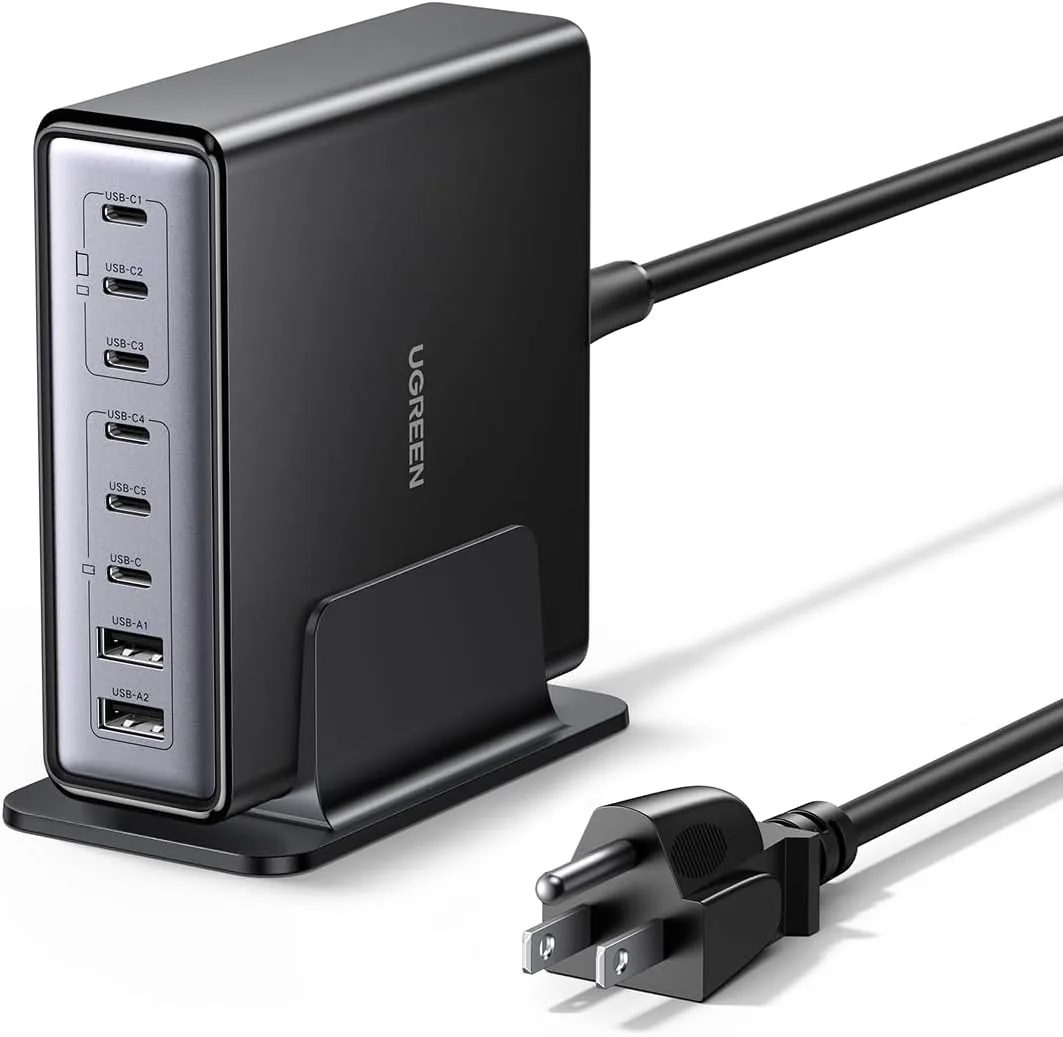 USD 52.48
UGREEN Nexode 200W GaN USB C Charging Station, 8-Port Desktop Charger with PD 100W for MacBook Pro 16"/Air, Dell XPS, iPad Pro, iPhone 17/16/15, Galaxy S25/S24, Pixel 10/9
Powerful 200W Output: This 4-port USB C charger delivers power up to 200W with a single-p…
View Details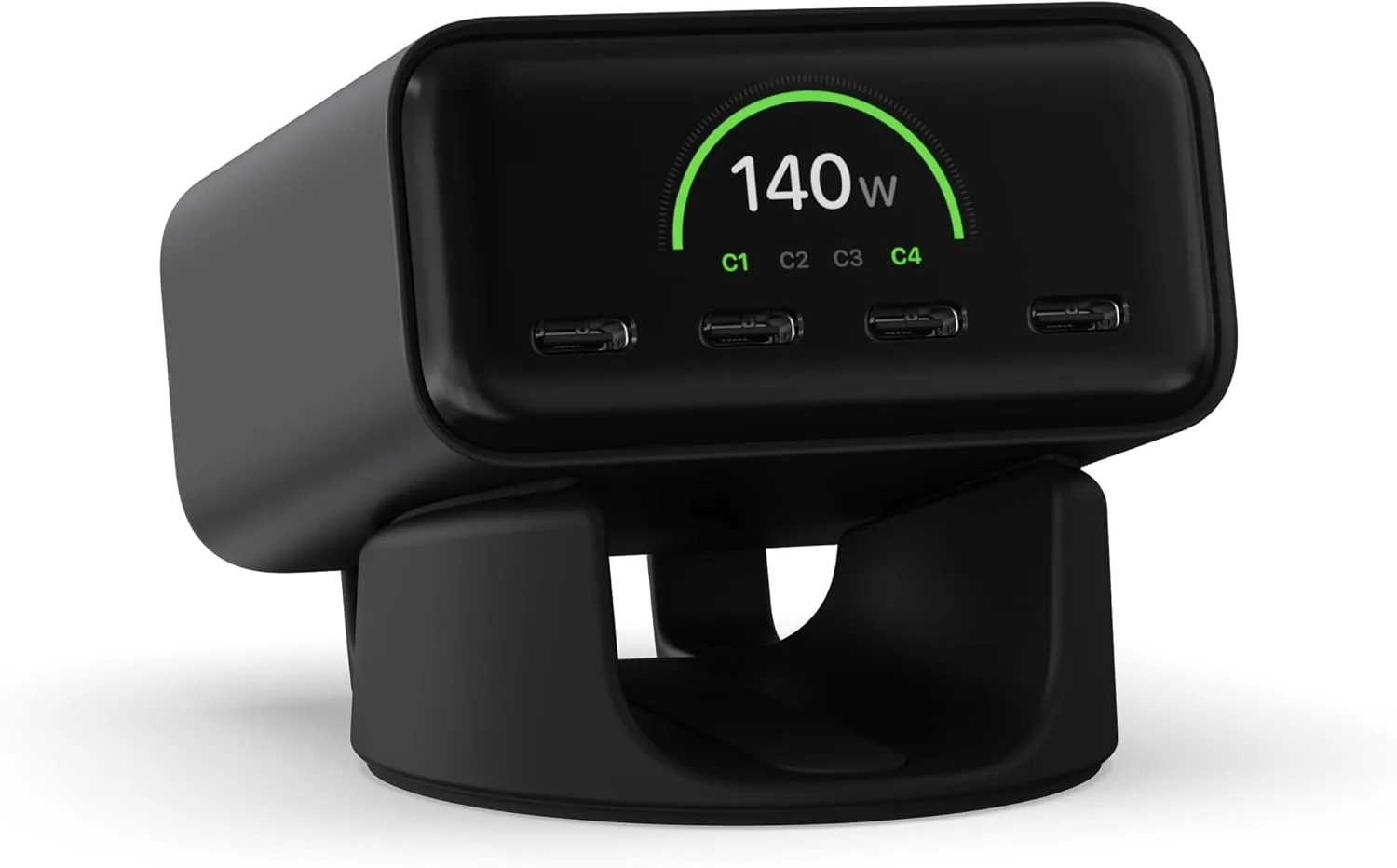 USD 74.99
Satechi ChargeView™ 140W Desktop Charger, GaN Charging Station with Live Power Display, Four USB-C Ports, Designed for Modern Workspaces, Space Black
𝗗𝗲𝘀𝗶𝗴𝗻𝗲𝗱 𝗳𝗼𝗿 𝗠𝗼𝗱𝗲𝗿𝗻 𝗪𝗼𝗿𝗸𝘀𝗽𝗮𝗰𝗲𝘀 – The Satechi ChargeView 140W Desktop Charger powers your …
View Details
USD 89.99
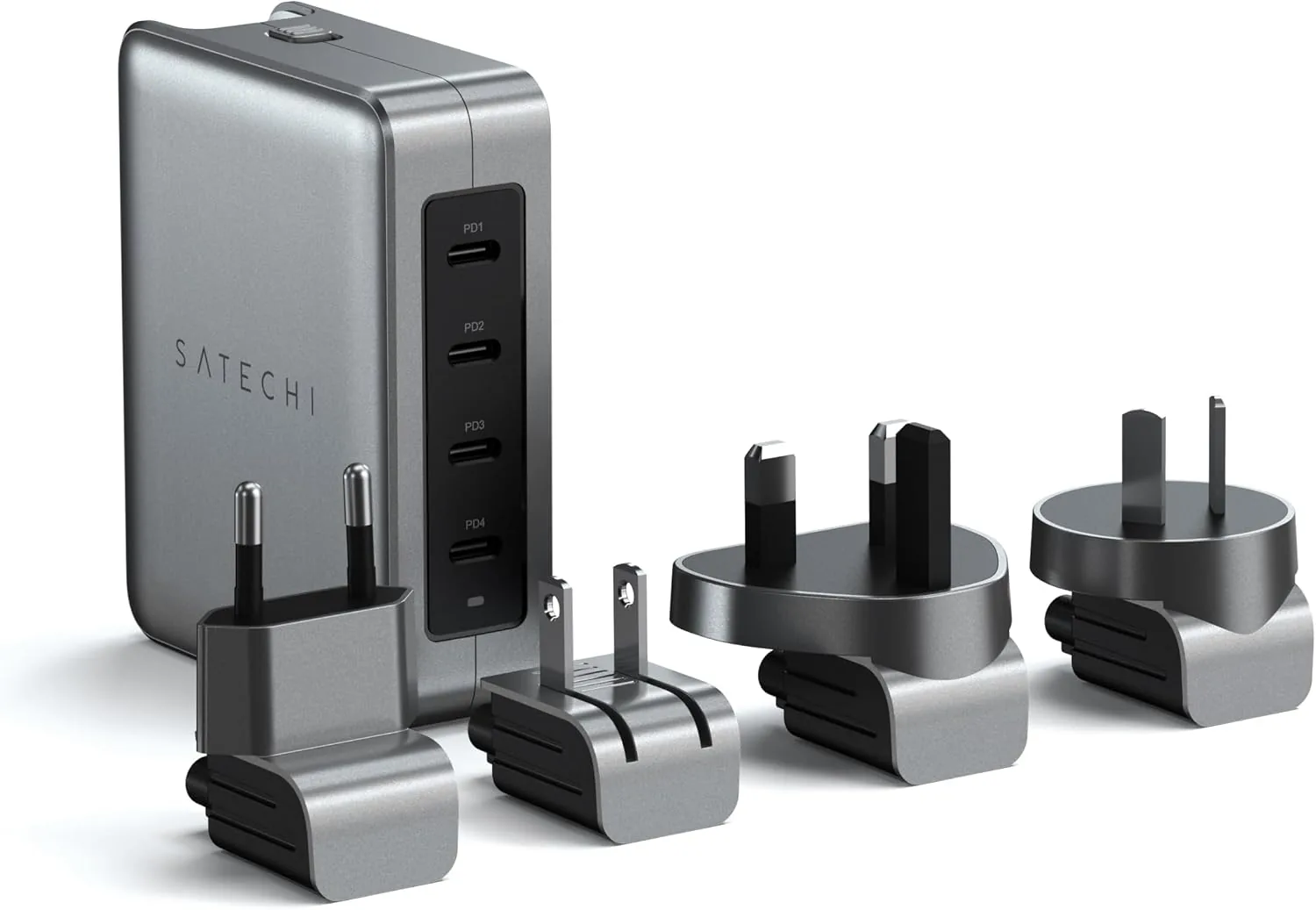
Satechi 145W GaN Travel Charger, 4-Port GaN USB C Charger, 2 USB-C PD 3.1, Fast Charging Travel Station for Laptop, for MacBook Air/Pro/Neo, iPad Air/Pro, iPhone 17 to 12 Series, Android, Windows
𝗗𝗲𝘀𝗶𝗴𝗻𝗲𝗱 𝗳𝗼𝗿 𝗧𝗿𝗮𝘃𝗲𝗹 𝗖𝗵𝗮𝗿𝗴𝗶𝗻𝗴 – A compact 145W GaN travel charger built to power laptops, …
View DetailsRelated Articles
- Anker 3-in-1 Cube Wireless Charger Buying Guide for Small Spaces
- Mebak 3 Massage Gun Buying Guide for Budget Full-Body Recovery
- Desktop Charging Station Buying Guide for Nightstand Cable Reduction
- Desktop Charging Station Buying Guide for Outlet-Limited Workspaces
- Desktop Charging Station Buying Guide for USB-C Monitor Setups
- Desktop Charging Station Buying Guide for Dorm Room Device Charging