
Desktop Charging Station Buying Guide for USB-C Monitor Setups
A desktop charging station for USB-C monitor setup can consolidate power for your laptop, display, phone, and accessories, but only if the station matches the needs of your most demanding device. Choose the wrong unit and your laptop may still lose battery while plugged in, or your setup may become unreliable when power is split across too many devices.
How USB-C Monitor Charging Works
Many USB-C and Thunderbolt monitors support USB-C monitor charging, so a single cable can carry video, data, and power between the display and your laptop. Depending on the monitor, that connection may send 65W, 90W, or 140W back to the computer.
What the monitor cannot do is create power on its own. It still needs wall power to run, and its USB-C output is limited by its design. If your laptop needs 100W under heavy workloads and the monitor provides only 65W, the battery can still drain during demanding tasks. The monitor also is not a practical source for higher-draw accessories.
Check Whether Your Laptop Needs Its Own Charger
Start with your laptop’s original adapter and note its wattage. If your laptop monitor charger is rated at 130W, a 65W USB-C monitor connection will not fully support the system under sustained load. It may be enough for light work, but during video editing or heavy compiling, the battery percentage can drop.
That is where a desktop charging station for USB-C monitor setup or another dedicated desk power hub makes sense. Your laptop gets the power it actually needs, while the monitor connection can focus on display and data duties or handle a smaller device such as a phone.
Plan Port Count and Power Distribution
Before you buy, count every device on the desk. That usually means more than a laptop and phone. Earbuds, a smartwatch, and other small accessories quickly use up open ports.
Also check how the charger distributes output when multiple ports are active. A 100W unit may deliver the full 100W to one device, then split that output to 65W and 30W, or lower, once other devices are connected. Review the manufacturer’s power allocation chart so your laptop still gets enough power when the rest of your gear is plugged in.
What to check before buying
- Your laptop’s required wattage
- Your monitor’s USB-C power delivery rating
- Total number of devices you want to charge at once
- How power is redistributed when multiple ports are in use
Do Not Confuse Data Ports With Charging Ports
USB-C ports may look the same, but they do not all do the same job. A USB-C port on a monitor that is intended only for data, such as connecting a drive, may provide as little as 4.5W. If you connect a laptop there, the system may recognize the connection while the battery continues to drain.
Check the labels on both the monitor and the charger. A battery icon or a printed wattage usually indicates power delivery. Labels such as SS or other data markings point to file transfer rather than laptop charging. A port that handles data is not automatically a laptop monitor charger.
Keep Cable Routing Clean in a Monitor-Centered Setup
A tidy desk depends on cable control as much as power capacity. A compact desktop charging station for USB-C monitor setup can be easier to place behind a monitor stand or under the desk, especially if it uses GaN technology.
Use under-desk trays or adhesive clips to route cables neatly. Keep the power cord from the wall to the charger short to reduce visible clutter. Then use appropriately long USB-C cables from the hub to your laptop and phone so you can move devices without pulling the charger out of place.
Charging Station vs. Docking Station
A charging station is mainly for power. A docking station is the better fit if your monitor does not have built-in USB-C, or if you also need multiple displays, ethernet, or SD card support. If your display connections are already handled and you simply need reliable charging for several devices, a desk power hub is usually the simpler option.
| Option | Best for | Main role |
|---|---|---|
| Charging station | Desks that need more charging capacity | Powers laptops, phones, and accessories |
| Docking station | Setups that also need display and accessory connectivity | Handles data, display connections, and pass-through power |
Recommended Desktop Charging Hubs
These two models are worth considering based on output, port count, and price. Both use GaN technology to keep size down while delivering substantial power.
| Product | Max Output | Ports | Price |
|---|---|---|---|
| Anker Prime Charging Station, 200W 6-Port GaN Desktop Charger | 200W total | 6 ports | $69.97 |
| UGREEN Nexode 100W GaN USB C Charger | 100W total (single device) | 4 ports | $40.84 |
For larger desks: Anker Prime Charging Station, 200W 6-Port
At $69.97, this Anker model is built for desks with several devices in constant rotation. If your setup includes a laptop, a USB-C monitor, a phone, and earbuds, the higher total output gives you more headroom when charging multiple devices at the same time.
For simpler setups: UGREEN Nexode 100W GaN USB C Charger
At $40.84, the UGREEN Nexode offers four ports and can deliver 100W to a single device when needed. It is a practical fit for a laptop plus a few smaller accessories, especially if you can disconnect secondary devices during heavier laptop workloads.
Frequently Asked Questions
Can I plug my USB-C monitor directly into a charging station?
No. A charging station supplies power to devices that draw power, such as laptops and phones. Your monitor still needs power from a standard AC outlet to operate and display an image.
Will a higher-wattage charger damage my laptop?
No. USB-C devices negotiate the amount of power they draw. A 200W charger does not force 200W into a laptop. It supplies only the wattage the laptop requests, while leaving the remaining capacity available for other devices.
Desktop Charging Station for USB-C Monitor Setup: Key Takeaways
- Check your laptop’s exact power requirement before choosing a charger.
- Count all the devices on your desk, not just the laptop and phone.
- Review port-by-port power distribution, especially if you charge several devices at once.
- Use your monitor’s USB-C power delivery only if it provides enough wattage for your laptop.
- Choose a separate desk power hub when your monitor cannot meet your laptop’s charging needs.
Related Products
 USD 40.49
Anker Prime Charging Station, 250W 6-Port GaN USB C Charger, 2.26" LCD Smart Display Control, Compatible with iPhone, Galaxy, MacBook, Dell for Home Office, Gaming Desk Accessories
Super Fast 250W Output: Experience the convenience of high-capacity charging with this 25…
View Details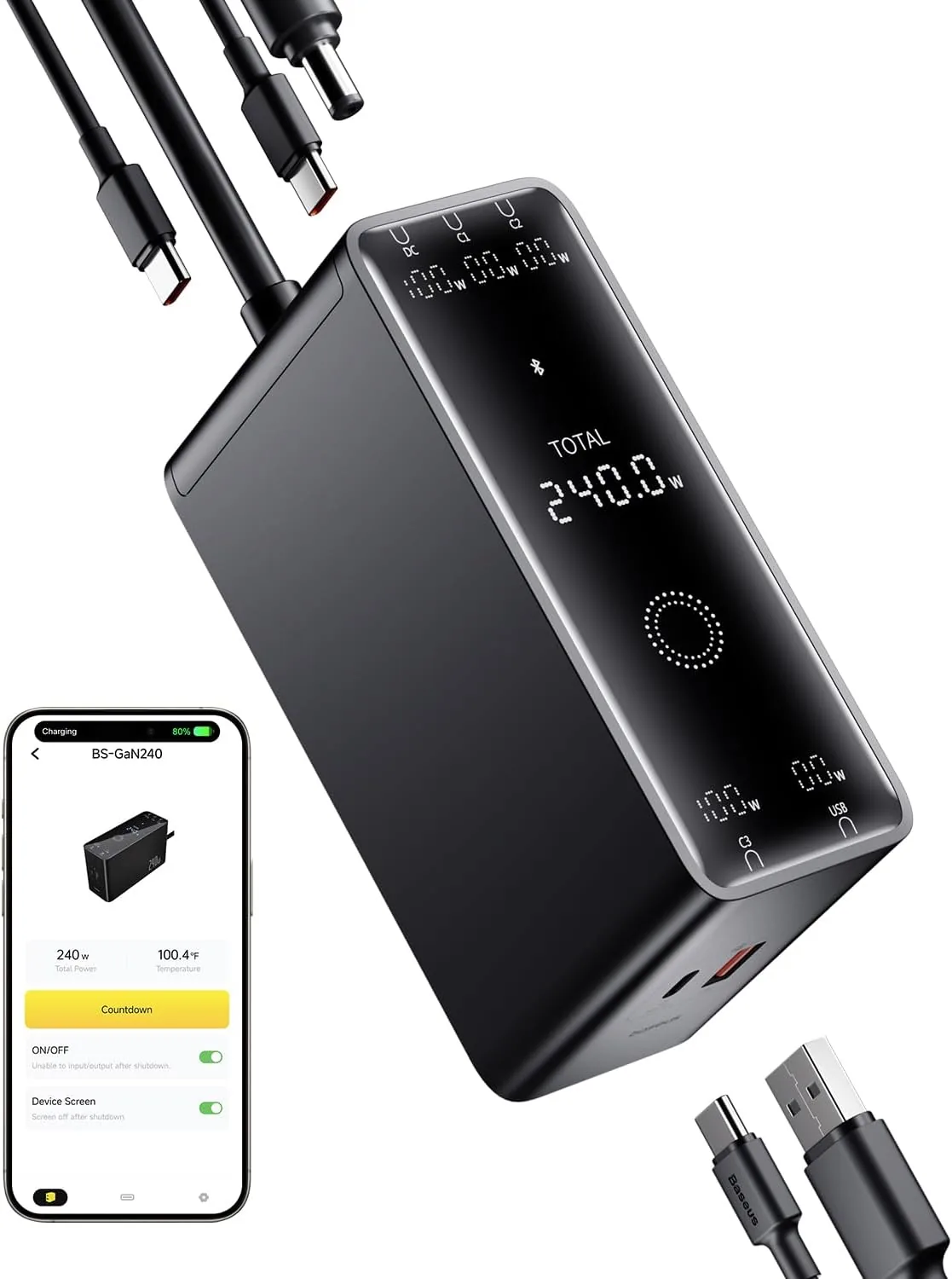 USD 52.49
Baseus 240W Smart Charging Station, 5-in-1 Desktop USB C Charger with Digital LED Display, PD 3.1 Dual Laptop Type C Fast Charging for MacBook Pro, Dell XPS, Lenovo, iPhone 16, Galaxy S24
Compact, 5-Port 240W Desktop Charger: Elevate your workspace with the industry's first 40…
View Details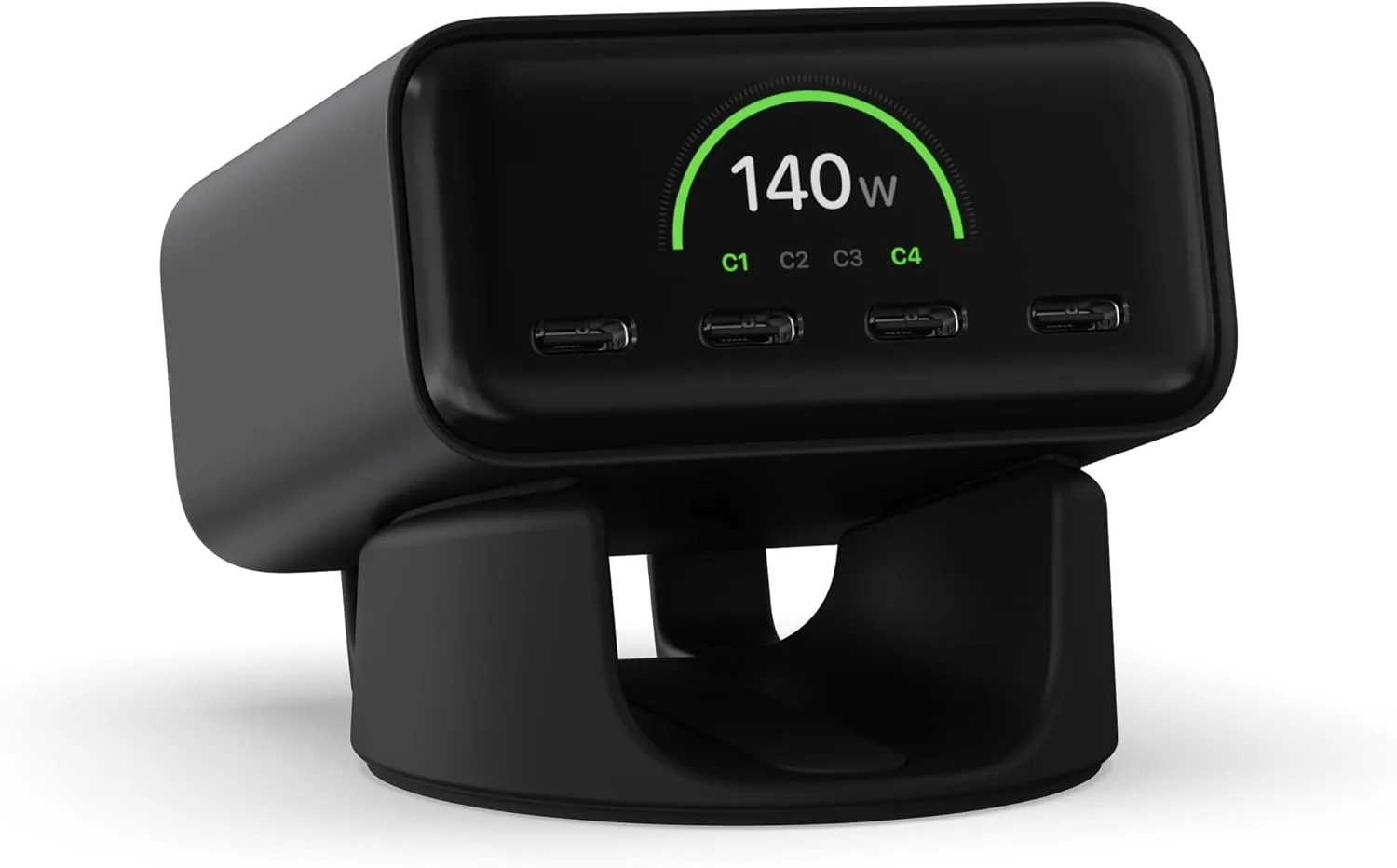 USD 74.99
Satechi ChargeView™ 140W Desktop Charger, GaN Charging Station with Live Power Display, Four USB-C Ports, Designed for Modern Workspaces, Space Black
𝗗𝗲𝘀𝗶𝗴𝗻𝗲𝗱 𝗳𝗼𝗿 𝗠𝗼𝗱𝗲𝗿𝗻 𝗪𝗼𝗿𝗸𝘀𝗽𝗮𝗰𝗲𝘀 – The Satechi ChargeView 140W Desktop Charger powers your …
View Details
USD 89.99
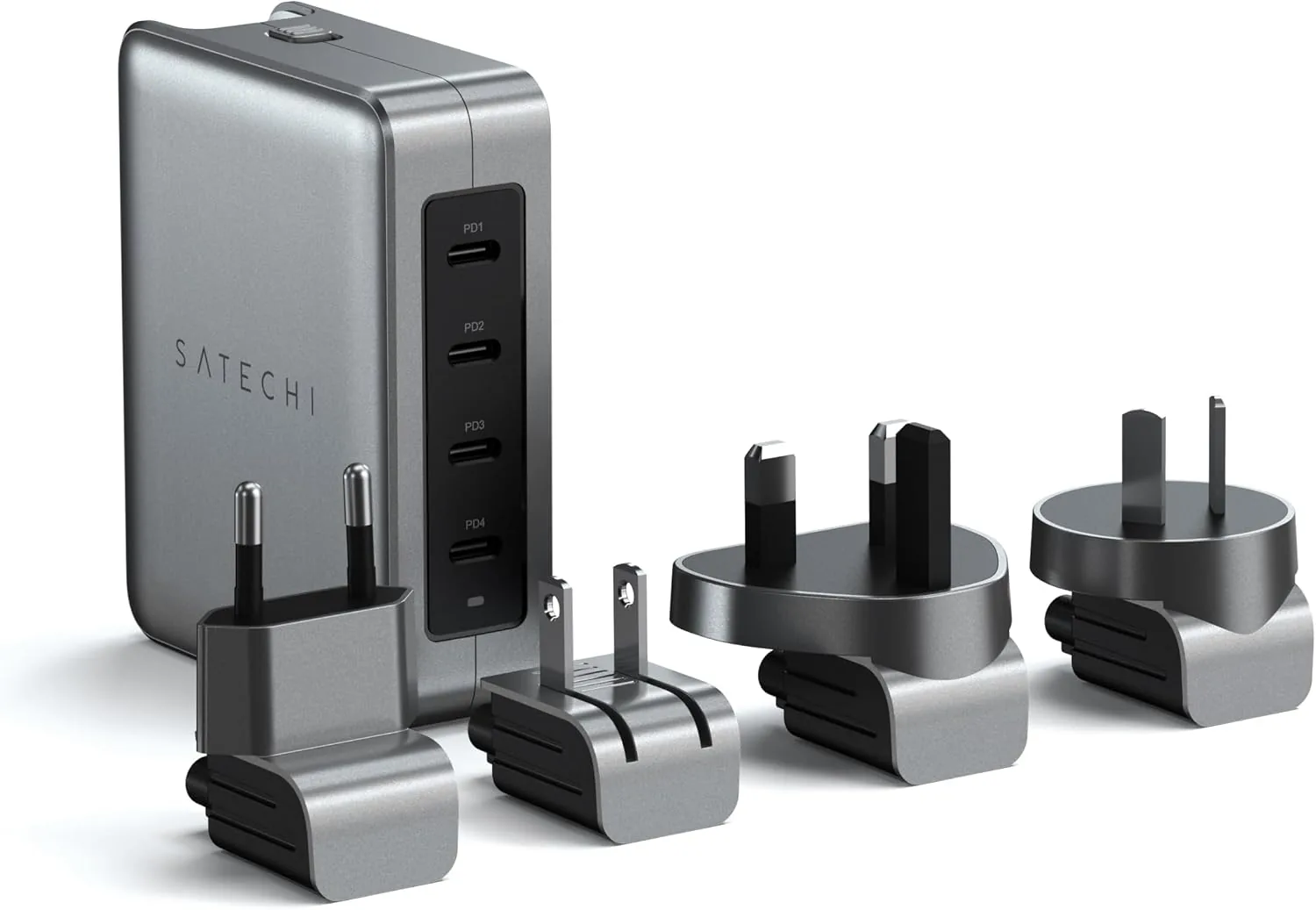
Satechi 145W GaN Travel Charger, 4-Port GaN USB C Charger, 2 USB-C PD 3.1, Fast Charging Travel Station for Laptop, for MacBook Air/Pro/Neo, iPad Air/Pro, iPhone 17 to 12 Series, Android, Windows
𝗗𝗲𝘀𝗶𝗴𝗻𝗲𝗱 𝗳𝗼𝗿 𝗧𝗿𝗮𝘃𝗲𝗹 𝗖𝗵𝗮𝗿𝗴𝗶𝗻𝗴 – A compact 145W GaN travel charger built to power laptops, …
View DetailsRelated Articles
- Massage Gun Carrying Case Buying Guide for Organized Storage
- Lightweight Massage Gun Buying Guide for Limited Hand Strength
- Desktop Charging Station Buying Guide for Device Charging During Video Calls
- Desktop Charging Station Buying Guide for Clear Power Readouts
- Desktop Charging Station Buying Guide for Photographers and Camera Gear
- Desktop Charging Station Buying Guide for USB-C Power Delivery Buyers