
Desktop Charging Station Buying Guide for Device Charging During Video Calls
How to Choose a Desktop Charging Station for Video Calls
Running out of battery mid-presentation is a common frustration for remote workers. Your screen dims, the audio stutters, and you scramble for a free wall outlet. A dedicated video conference desk charger prevents these disruptions, keeping your laptop, phone, headset, and webcam light powered simultaneously. Beyond keeping your devices running, the right charger hides messy cables that can ruin your professional on-camera appearance.
Many buyers grab the cheapest multi-port hub available, only to end up with slow charging speeds, overheating blocks, and tangled wires. Avoiding these pitfalls requires understanding exactly what you need from your equipment.
Powering Your On-Camera Devices Simultaneously
Before selecting a power station, inventory the devices you use during calls. A modern remote setup typically includes a primary laptop, a smartphone (often acting as a secondary monitor or hot spot), active noise-cancelling headphones, and a dedicated webcam light. A capable remote work power station must deliver enough total wattage to handle all these devices at once without tripping a power limit.
When you add bright lighting or external monitors to the mix, the power draw spikes. If your charger cannot handle the combined load, it will prioritize certain ports and throttle others. This might leave you with a dead headset right before you need to speak.
Prioritizing Laptop Power Over Peripherals
Not all USB ports are equal. Your laptop requires substantially more power than your phone or earbuds, especially when running a high-definition video stream. Always allocate the highest-wattage port on your charging station to the laptop. A 100-watt port will keep a 15-inch or 17-inch machine running smoothly during intensive tasks. Your webcam light phone charger, secondary phone, and wireless headset can easily share the remaining lower-wattage ports.
Eliminating Desk Clutter While On Camera
Cable management is half the battle during video calls. A cluster of tangled wires across your desk looks unprofessional and distracting. The right charger helps you consolidate power runs into a single, organized hub.
Look for stations that offer a mix of USB-C and USB-A ports, alongside built-in wireless charging pads. This allows you to dock your smartphone and power lighting accessories without hunting for individual wall adapters. By routing all peripheral power needs to one central block, you free up wall outlets and drastically reduce visual clutter.
Managing Heat and Noise
Pushing high wattage through a charging block generates heat. Some budget stations use loud internal fans that create a background hum your microphone will pick up. Other units rely on passive cooling but use thin plastic shells that get dangerously hot. Seek out chargers with heavy-duty aluminum housings. Metal acts as a natural heat sink, dissipating warmth silently so your microphone stays focused on your voice. Keep your charging block out of direct sunlight and ensure it has breathing room behind your monitors.
Building a Reliable Backup Charging Routine
Even the best desktop setup needs a contingency plan. Power outages and unexpected trips mean you cannot rely entirely on a stationary hub. Building a backup routine keeps secondary devices fully charged and ready to grab. For instance, keeping premium noise-cancelling headphones fully juiced ensures you can seamlessly switch from your desktop to a mobile device if your home internet drops. Consider how specific headsets fit into your backup strategy:
- Anker Soundcore Life Q20 ($39.99): These hybrid active noise-cancelling headphones filter out up to 90% of low-frequency ambient noise, making them an affordable backup pair to keep charged for sudden environment changes.
- Bose Noise-Cancelling Headphones ($549.00): A top-tier investment for professionals who need absolute silence during critical financial or client calls.
Protecting Your Mobile Backup Gear
When you unplug from your desk to take a call on the go, how you transport your charging banks and headsets matters. Tossing delicate electronics into an unlined bag is a quick way to ruin your gear. Upgrading your everyday carry bag ensures your chargers, cables, and headphones survive the commute.
- Tzowla Travel Laptop Backpack ($25.99): A water-resistant option with a separate laptop compartment and anti-theft features, giving you an organized way to carry a laptop up to 15.6 inches along with charging blocks.
- Samsonite Xenon 3.0 Slim Laptop Backpack ($395.00): Made from rugged 1680D Ballistic Poly, this premium bag protects high-end equipment and keeps cables separated from mobile devices.
Comparing Backup Carry Options for Your Gear
When selecting a bag to hold your laptop, chargers, and audio gear, your choice depends on your budget and how much punishment your bag takes daily. Here is how these two specific options compare for a remote worker who needs gear protected on the move.
| Feature | Tzowla Travel Laptop Backpack | Samsonite Xenon 3.0 Slim Backpack |
|---|---|---|
| Price | $25.99 | $395.00 |
| Best For | Budget-conscious remote workers needing basic water resistance and anti-theft locking | Executives needing rugged, high-end durability for daily commuting |
| Material / Build | Standard travel fabric with water-resistant coating | Rugged 1680D Ballistic Poly |
| Organization | Large capacity with separate laptop compartment | Slim profile with premium internal layout |
Actionable Takeaways for Your Desk Setup
- Audit your wattage: List every device you use during a call and add up their power needs. Ensure your primary charging station offers enough total output to handle them simultaneously without throttling.
- Route high power first: Plug your laptop directly into the highest-wattage port available, then connect your phone, light, and headset.
- Hide the wires: Use a station with a long power cable so you can mount it behind your monitor or under your desk, keeping cords completely out of your webcam's frame.
- Charge your backups: Keep a mobile power bank and a secondary pair of noise-cancelling headphones fully charged in your carry bag for unexpected outages.
Related Resources
Related Products
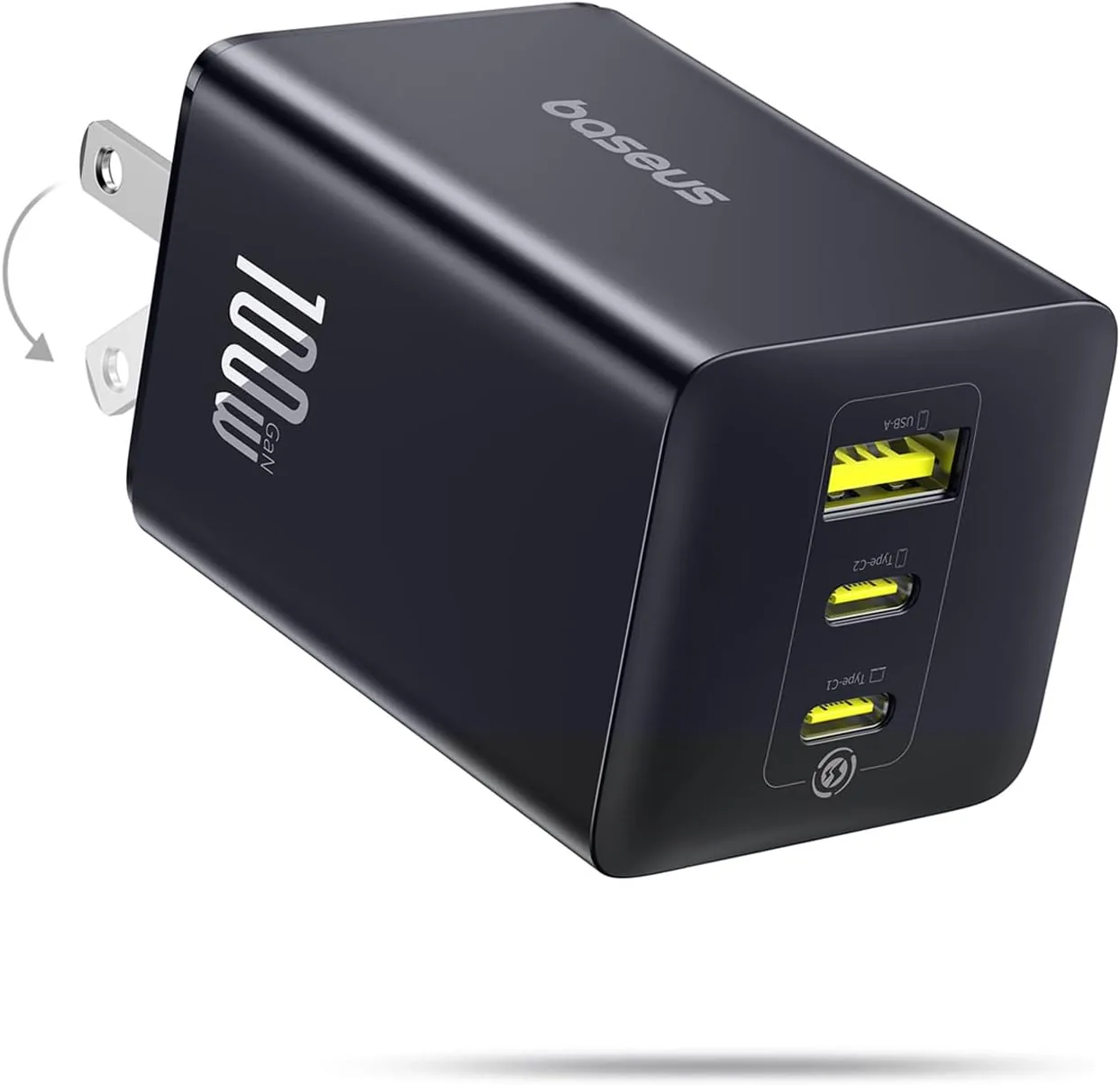 USD 28.49
Baseus 100W USB C Charger Block, 3-Port Foldable Compact PPS Wall Charger, Fast Charging Power Adapter for MacBook Pro/Air, iPad, iPhone 17 Pro Max/Air, Galaxy S24, Steam Deck & More
100W Ultra-Fast Charging: This product delivers a peak power output of 100W. Under optima…
View Details USD 40.49
Anker Prime Charging Station, 250W 6-Port GaN USB C Charger, 2.26" LCD Smart Display Control, Compatible with iPhone, Galaxy, MacBook, Dell for Home Office, Gaming Desk Accessories
Super Fast 250W Output: Experience the convenience of high-capacity charging with this 25…
View Details
USD 74.99
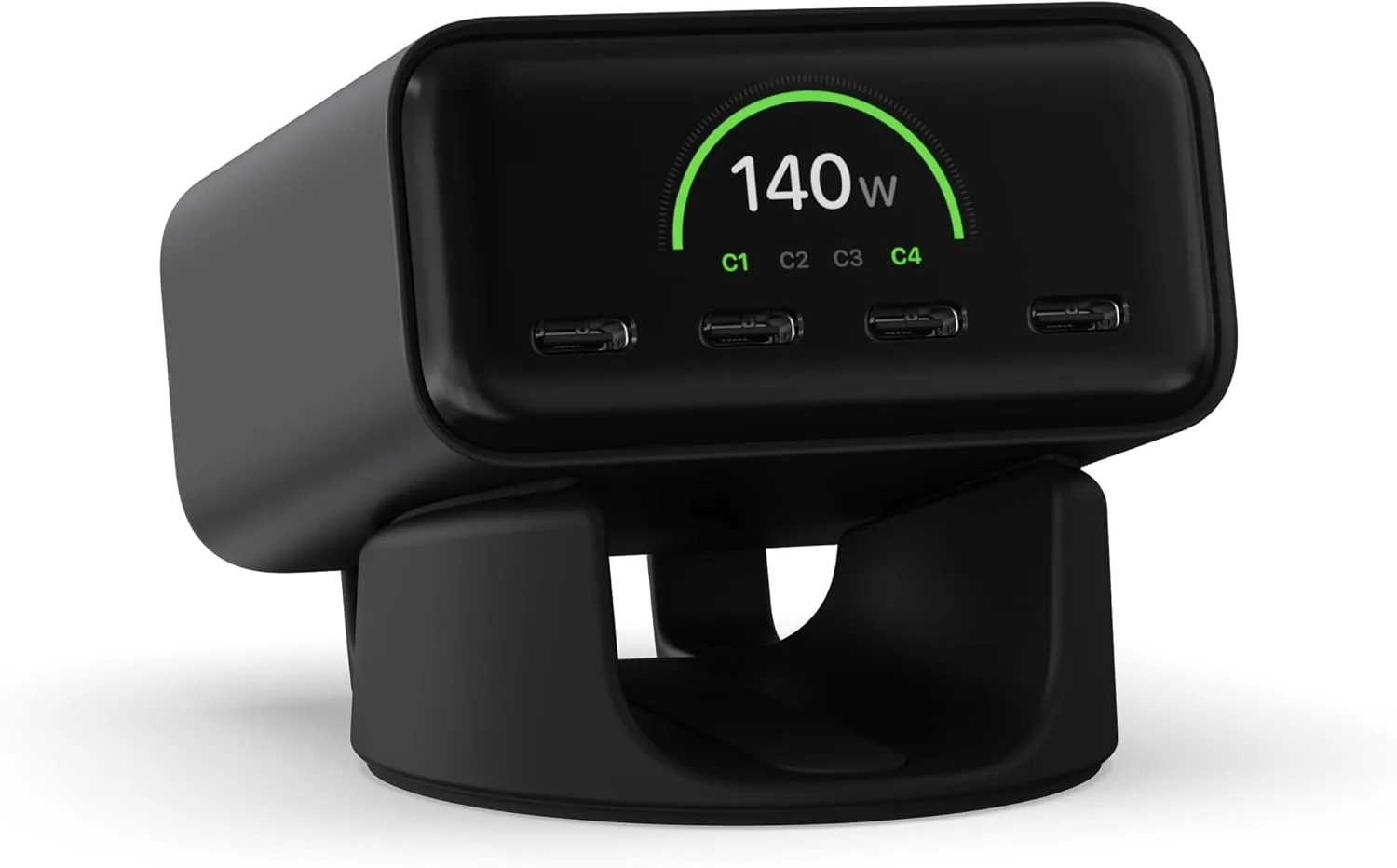
Satechi ChargeView™ 140W Desktop Charger, GaN Charging Station with Live Power Display, Four USB-C Ports, Designed for Modern Workspaces, Space Black
𝗗𝗲𝘀𝗶𝗴𝗻𝗲𝗱 𝗳𝗼𝗿 𝗠𝗼𝗱𝗲𝗿𝗻 𝗪𝗼𝗿𝗸𝘀𝗽𝗮𝗰𝗲𝘀 – The Satechi ChargeView 140W Desktop Charger powers your …
View Details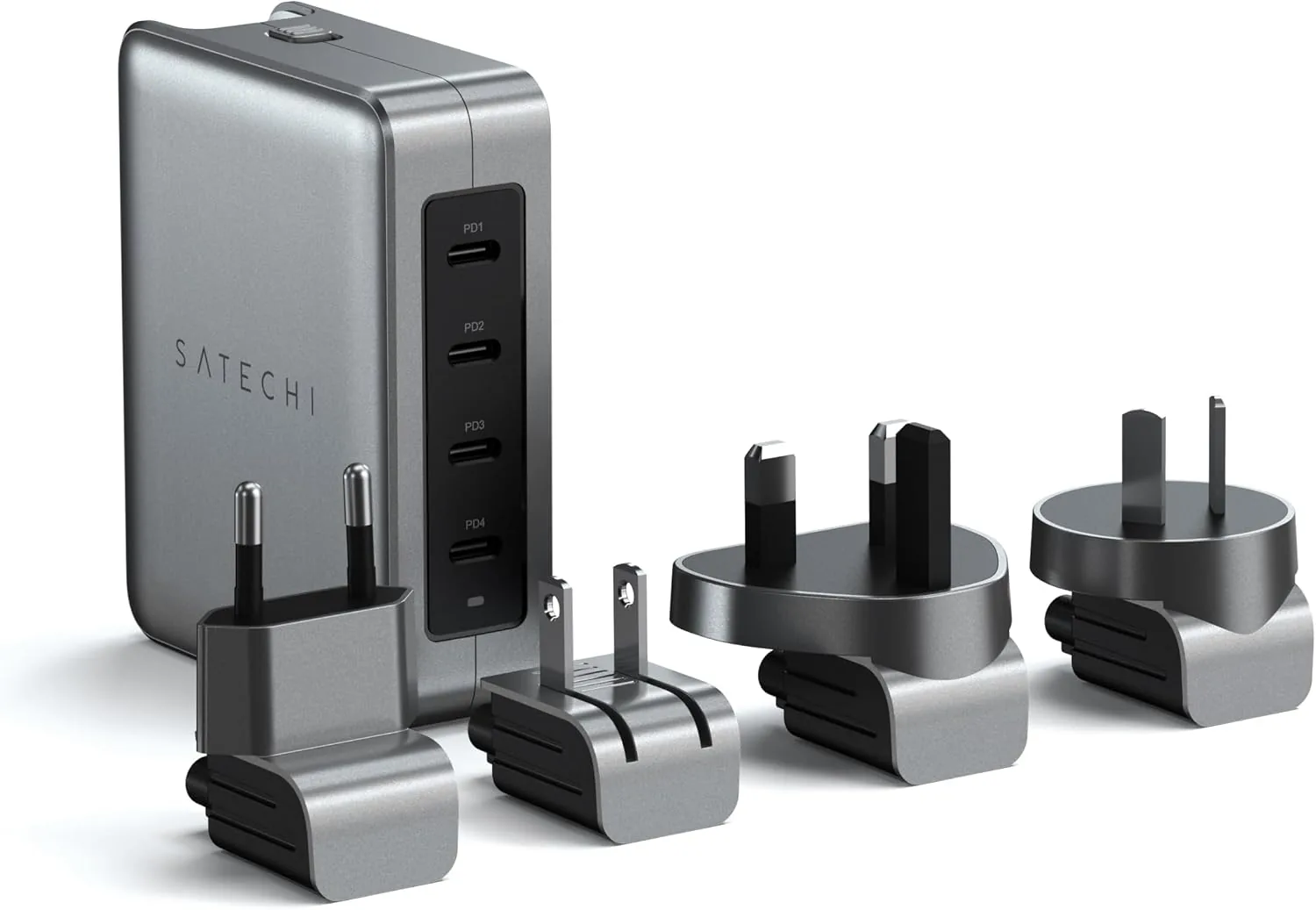 USD 89.99
Satechi 145W GaN Travel Charger, 4-Port GaN USB C Charger, 2 USB-C PD 3.1, Fast Charging Travel Station for Laptop, for MacBook Air/Pro/Neo, iPad Air/Pro, iPhone 17 to 12 Series, Android, Windows
𝗗𝗲𝘀𝗶𝗴𝗻𝗲𝗱 𝗳𝗼𝗿 𝗧𝗿𝗮𝘃𝗲𝗹 𝗖𝗵𝗮𝗿𝗴𝗶𝗻𝗴 – A compact 145W GaN travel charger built to power laptops, …
View DetailsRelated Articles
- Massage Gun Buying Guide for Shoulder and Upper Back Reach
- Massage Gun Display Buying Guide for Easy On-Device Control
- Desktop Charging Station Buying Guide for USB-C Monitor Setups
- Desktop Charging Station Buying Guide for Conference Room Tables
- Desktop Charging Station Buying Guide for USB-C Power Delivery Buyers
- Desktop Charging Station Buying Guide for Cable-Managed Work Desks