
Desktop Charging Station Buying Guide for Clear Power Readouts
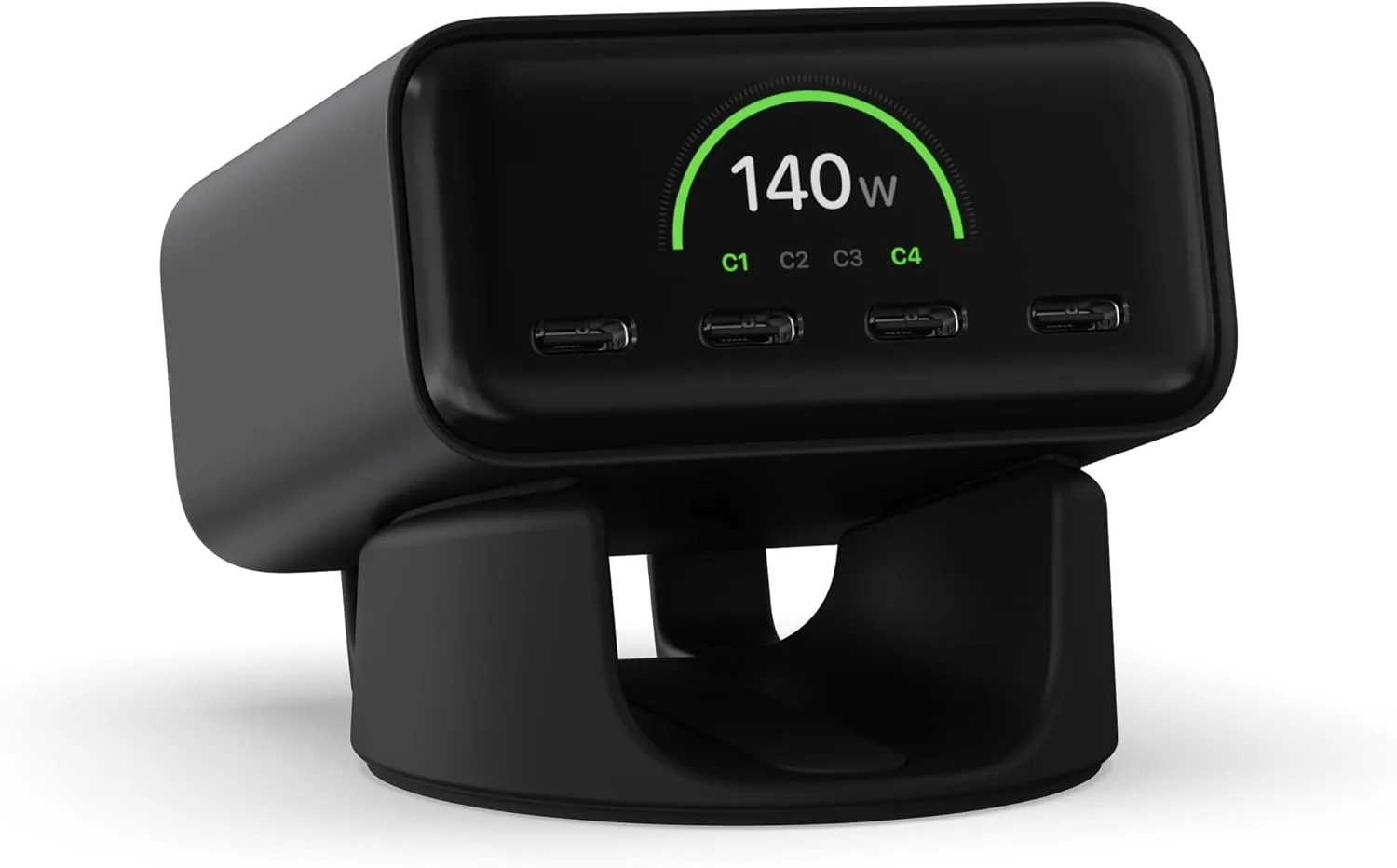
A desktop charging station with a power display lets you see exactly how much wattage each device is drawing, so you stop guessing whether your laptop is fast-charging or trickle-charging. The screen turns charging from a black box into a measurable, repeatable process, which is the difference between a charger you trust and one you constantly swap out.
Why a Power Display Matters When Buying a Desktop Charger
Most charging failures look identical: a device charges slowly, a battery drains overnight, a port stops working. Without a readout, you cannot tell whether the cable, the port, the charger, or the device itself is the problem. A built-in screen collapses that detective work into a single glance.
Real-time power monitoring also exposes wasted capacity. A 100 W port feeding a phone that only accepts 18 W is not "fast"; it is just expensive. When the wattage number is visible, you can downshift to the right cable or port, which reduces heat and extends battery life on phones and laptops that punish sustained high-heat charging.
Finally, a display helps when you travel or change setups. Plugging an unfamiliar brick into a known charger shows you immediately whether the negotiated power profile matches the brick's rating. That single check catches most of the bad third-party cables sold online.
Compare Total Wattage Displays With Per-Port Readouts
There are two common styles of charging wattage display, and they answer different questions.
- Aggregate total display: shows the combined wattage the charger is delivering across all ports. Useful for confirming the unit is not thermal-throttling under multi-device load, but it hides what each port is doing.
- Per-port display: cycles through or splits the screen to show each USB-C or USB-A port individually. This is the version that actually helps you troubleshoot a single slow device.
If you regularly charge a laptop plus a phone plus earbuds, the per-port layout is worth the small price premium. Aggregate-only readouts tend to ship on cheaper units and leave you reading the manual when something goes wrong.
Understand What Charging Data a Screen Can and Cannot Show
A charging display screen is honest only within the limits of what the USB-C Power Delivery or Quick Charge handshake reveals. It can show negotiated wattage, current voltage, and sometimes temperature. It cannot show battery health, cycle count, or whether the device's own charging controller has capped input for thermal reasons.
Two numbers to watch: negotiated wattage and actual delivered wattage. When a phone negotiates 25 W but the display shows 9 W, the bottleneck is almost always the cable. Replace the cable before replacing the charger.
Be skeptical of chargers that advertise a wattage but only display a single bar graph or LED tier. A true power readout gives you a numeric value you can compare to the device's spec sheet. If the spec says 65 W and your screen says 30 W, you have a real, fixable problem rather than a vague complaint.
Match Display Features to Your Devices and Daily Routine
Match the charger to your heaviest device first, not to the average. A 16-inch laptop negotiating 100 W needs a charger that can sustain that number across a full multi-port session, not one that peaks at 100 W on a single port and throttles the rest to 10 W.
For a desk with one laptop, one phone, and a pair of wireless earbuds, a 65 W to 100 W four-port GaN charger with a clear per-port screen covers nearly every routine. For a dual-laptop workflow or a creator editing on a power-hungry workstation, step up to a 140 W or higher unit with explicit per-port readouts so you can confirm each laptop is actually drawing its full allocation.
If your routine involves travel, prioritize chargers that retain their display accuracy on 100-240 V input. Some screens dim or flicker on weak hotel inverters; reading reviews from frequent travelers saves you from learning this the hard way at an airport lounge.
Assess Screen Visibility, Controls, and Desk Placement
A display you cannot read is a display you ignore. Look for OLED or high-contrast IPS panels with at least a 1-inch diagonal readout; anything smaller forces you to pick up the unit to confirm a number. Matte housings reduce glare under overhead office lighting, which matters more than people expect when the charger sits between a monitor and a window.
Controls matter as much as the screen. Toggle buttons that switch between total view, per-port view, voltage, and temperature should be tactile and labeled. Touch-only interfaces on a charger tend to attract fingerprints and accidental mode changes when you slide the unit across a desk.
Placement is the silent killer. A charger shoved behind a monitor defeats the purpose of the readout. If the unit has a right-angle power input or a top-facing screen, you can push it back against a wall and still read the numbers. A short, right-angle USB-C cable from the charger to the device keeps the desk clean without hiding the screen.
Choose a Display Charger Without Paying for Unneeded Features
Display chargers attract feature creep: app connectivity, wireless pads bolted on top, fans that ramp up under load. Decide what you will actually use before paying for it.
Three pieces of comparison material from this catalog's standing-desk and ergonomic-chair lines are worth scanning because they share the same buyer logic: pick by the heaviest load, then trim. The Vari Classic Electric Standing Desk at $699.00 and the FlexiSpot 71"x32" Large Dual Motor Electric Standing Desk at $259.99 both illustrate the trade-off between premium build and value sizing. Applied to chargers, the equivalent is paying for higher sustained wattage versus paying for a clean display and tight port layout. The Seville Classics OFF65808 Airlift 36" Gas-Spring Height Adjustable unit at $299.99 shows how a mid-priced component can outperform a flashier alternative when the spec sheet matches the actual workload.
| Product | Category | Price (USD) | Rating | Best fit |
|---|---|---|---|---|
| Vari Classic Electric Standing Desk | Standing desk | $699.00 | 4.8/5 (2,021 reviews) | Premium buyers who want top-rated assembly and finish |
| FlexiSpot 71"x32" Large Dual Motor Electric Standing Desk | Standing desk | $259.99 | 4.5/5 (1,728 reviews) | Value buyers who need size and dual-motor stability |
| Seville Classics OFF65808 Airlift 36" | Desk converter | $299.99 | 4.6/5 (1,958 reviews) | Buyers who want gas-spring adjustability at a mid price |
For chargers specifically, skip wireless charging pads if your phone already supports faster wired USB-C PD. Skip app connectivity unless you genuinely want firmware updates; the screen already tells you what you need. Skip fans unless you regularly pull 100 W+ across all ports for sustained sessions, because fans add bulk and noise that end up tucked in a drawer.
Field-Tested Habits That Keep a Display Charger Useful
Three habits separate buyers who keep their charger on the desk from those who shove it in a drawer within a month.
- Glance at the screen when you plug in. A two-second look confirms the negotiated wattage matches your expectation. If it does not, swap the cable before the device wastes a charge cycle at low wattage.
- Recheck monthly. Cable wear, port debris, and firmware drift slowly reduce delivered wattage. A monthly screen check catches the slide before your battery does.
- Keep the screen clean. A microfiber wipe once a week keeps OLED and IPS readouts legible under office lighting. Dusty screens get ignored, and ignored screens are wasted money.
Actionable Takeaways
- Buy a charger with per-port numeric readouts, not aggregate-only bars.
- Match the charger's sustained wattage to your heaviest single device, not your average load.
- If a port reads low, swap the cable first; the cable is the bottleneck roughly seven times out of ten.
- Place the charger where the screen faces you, not the wall, so the readout earns its keep.
- Pass on app connectivity and wireless pads unless you will use them; spend the budget on a brighter screen and a higher-grade GaN chipset instead.
Related Resources
Related Products
 USD 40.49
Anker Prime Charging Station, 250W 6-Port GaN USB C Charger, 2.26" LCD Smart Display Control, Compatible with iPhone, Galaxy, MacBook, Dell for Home Office, Gaming Desk Accessories
Super Fast 250W Output: Experience the convenience of high-capacity charging with this 25…
View Details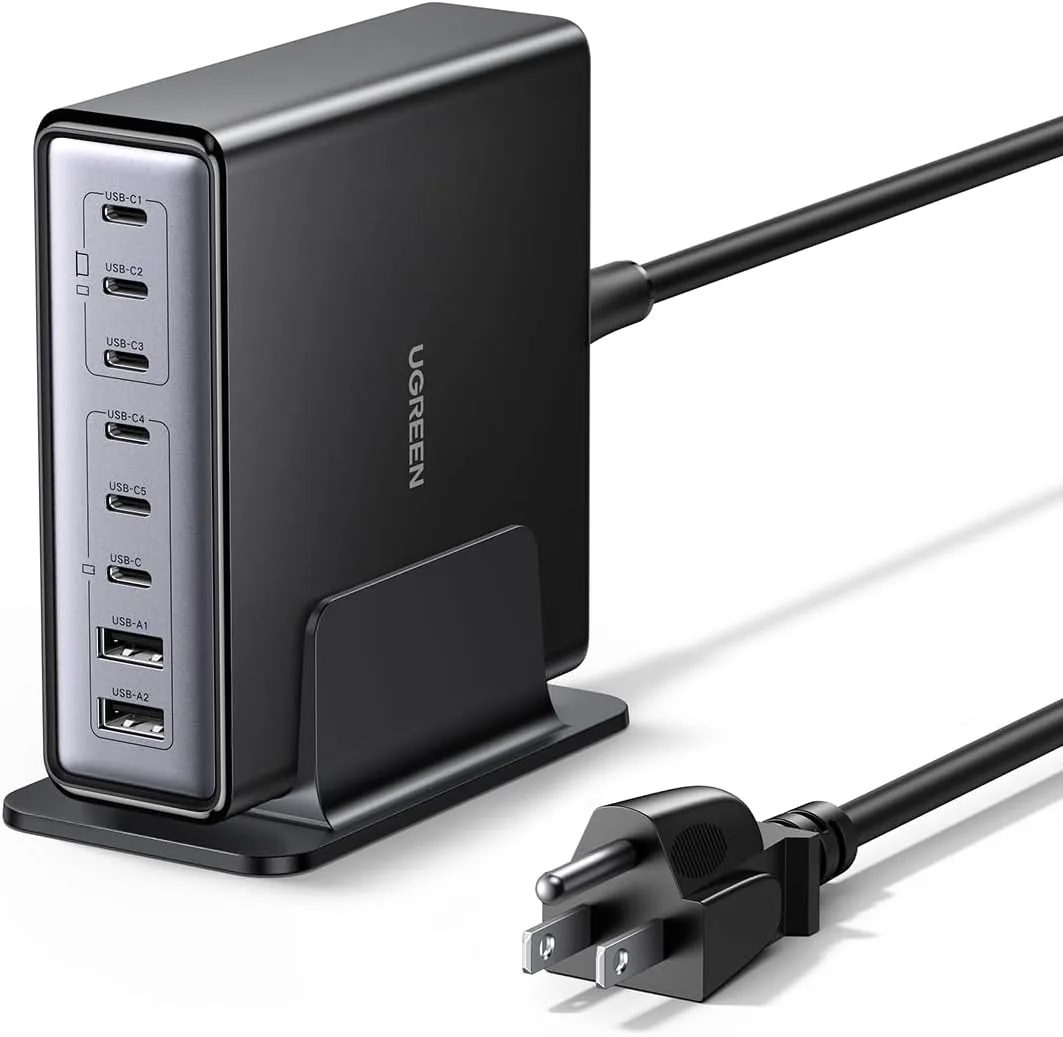 USD 52.48
UGREEN Nexode 200W GaN USB C Charging Station, 8-Port Desktop Charger with PD 100W for MacBook Pro 16"/Air, Dell XPS, iPad Pro, iPhone 17/16/15, Galaxy S25/S24, Pixel 10/9
Powerful 200W Output: This 4-port USB C charger delivers power up to 200W with a single-p…
View Details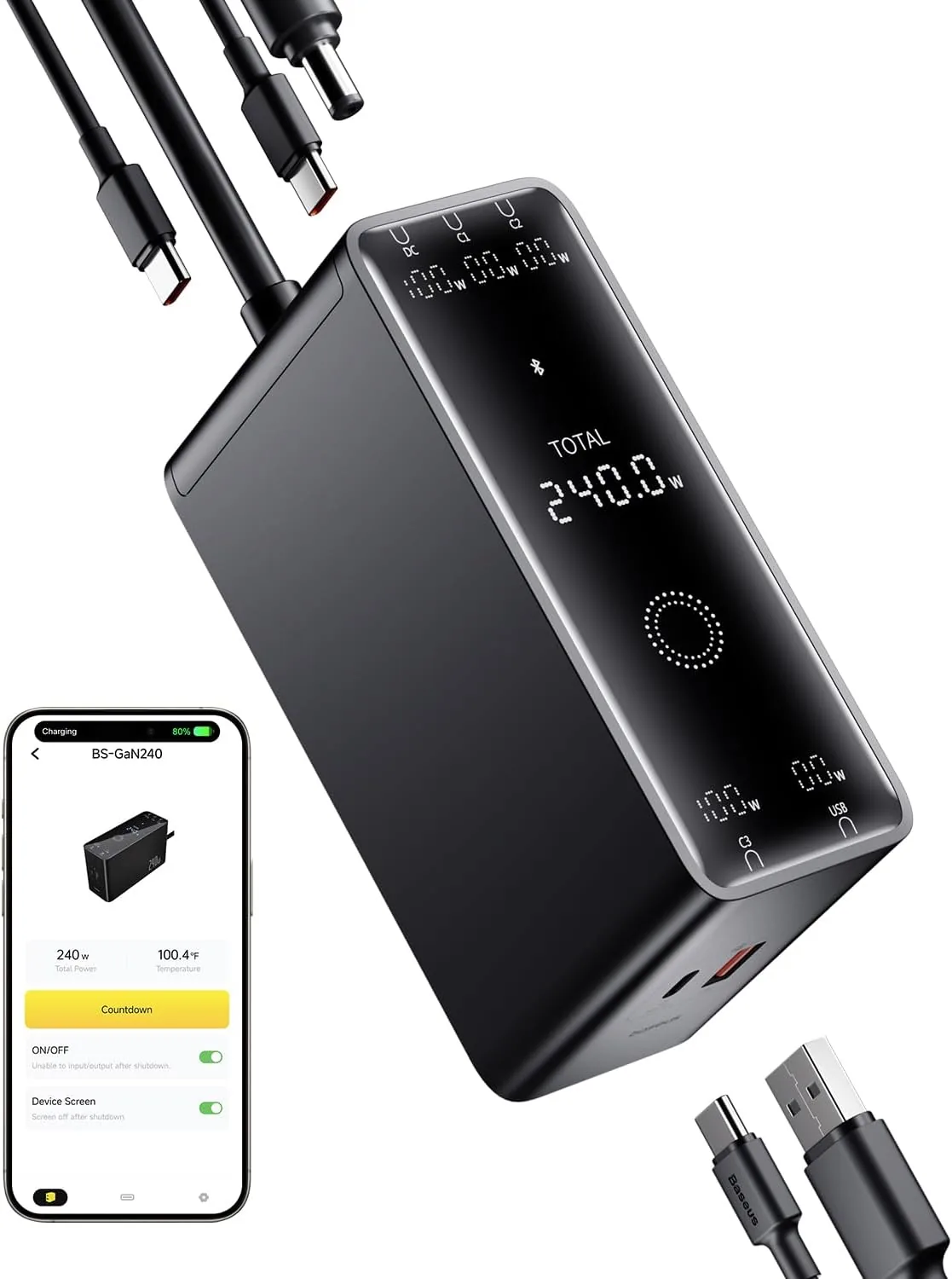 USD 52.49
Baseus 240W Smart Charging Station, 5-in-1 Desktop USB C Charger with Digital LED Display, PD 3.1 Dual Laptop Type C Fast Charging for MacBook Pro, Dell XPS, Lenovo, iPhone 16, Galaxy S24
Compact, 5-Port 240W Desktop Charger: Elevate your workspace with the industry's first 40…
View Details
USD 74.99
Satechi ChargeView™ 140W Desktop Charger, GaN Charging Station with Live Power Display, Four USB-C Ports, Designed for Modern Workspaces, Space Black
𝗗𝗲𝘀𝗶𝗴𝗻𝗲𝗱 𝗳𝗼𝗿 𝗠𝗼𝗱𝗲𝗿𝗻 𝗪𝗼𝗿𝗸𝘀𝗽𝗮𝗰𝗲𝘀 – The Satechi ChargeView 140W Desktop Charger powers your …
View DetailsRelated Articles
- Bluetooth Massage Gun Buying Guide for App-Guided Recovery Routines
- Hyperice Hypervolt 2 Buying Guide for Everyday Quiet Muscle Recovery
- Desktop Charging Station Buying Guide for USB-C Monitor Setups
- Desktop Charging Station Buying Guide for USB-C Power Delivery Buyers
- Baseus PowerCombo 100W Buying Guide for Desk and Outlet Charging
- Desktop Charging Station Buying Guide for Conference Room Tables