
Desktop Charging Station Buying Guide for Heat-Conscious Buyers

A cool-running desktop charging station stays comfortable to the touch even while it powers a laptop, a tablet, and a phone at once. The gap between a charger that merely works and one that stays cool comes down to circuitry, materials, and placement. Heat is a normal byproduct of converting wall power into device power, but excess heat shortens component life, degrades batteries, and in rare cases creates a real safety issue. This guide explains where that heat comes from, how to judge a charger's thermal design before you buy, and how to spot the warning signs that a charger should be retired.
Why Desktop Chargers Generate Heat Under Heavy Loads
Every charger loses some energy as heat during power conversion. Wall outlets deliver alternating current; devices need direct current at specific voltages. The conversion circuitry — transformers, capacitors, switching transistors — cannot be perfectly efficient, so the leftover energy leaves as warmth. That is physics, not a defect.
What separates a well-designed charger from a poor one is how much heat it produces and how quickly it sheds it. Three factors matter most:
- Conversion efficiency. A charger with higher efficiency wastes less energy as heat in the first place. Gallium nitride (GaN) circuitry is the main reason modern chargers run cooler than older bricks of the same wattage — GaN transistors switch more cleanly and lose less energy at each transition.
- Total load. A charger rated for 100W is not designed to run cool at 100W by margin alone. Sustained pull near its maximum for hours guarantees real warmth.
- Heat dissipation. The same internal heat feels very different inside a sealed plastic shell than in a chassis built to spread and vent it.
When a charger feels warm, the honest question is not "why is it hot?" but "is it shedding heat as fast as it generates it?" A good unit reaches a stable, moderate temperature and stays there. A bad one keeps climbing.
Identify the Device Combinations That Create Sustained Demand
Before comparing chargers, tally what you will actually plug in. Many buyers overestimate needs and buy more wattage — and more bulk — than necessary. Others underestimate and push a small charger to its limit all day, a classic recipe for a hot-running desk.
Think in load profiles:
- Light load: phone, earbuds, smartwatch. Modest, intermittent demand. Almost any reputable multi-port charger handles this without strain.
- Mixed load: laptop, phone, tablet. The laptop dominates. If it fast-charges at 60W or more, the charger needs real headroom beyond that figure to stay cool while feeding the other ports.
- Heavy sustained load: a power-hungry laptop at full tilt, a second laptop, and accessories charging through a full workday. This is where GaN charger temperature behavior and ventilation design genuinely matter.
Add up the maximum wattage your devices can draw, then choose a charger whose rating comfortably exceeds that total. Headroom is the cheapest form of desktop charger heat management you can buy.
Compare Charger Design, Materials, and Ventilation Considerations
Once you know your load, evaluate the hardware. Multi-port charger ventilation is not a spec printed on the box, so you read between the lines of the design.
Signals of a thermally thoughtful charger include:
- GaN circuitry. Gallium nitride generally runs cooler and more efficiently than older silicon-based units at equivalent output, in a smaller body.
- Thermally conductive housings. A chassis that doubles as a heat sink — often with visible fins, ridges, or a metallic finish — pulls internal heat outward far better than a smooth sealed plastic box.
- Port spacing. Ports crowded along one edge force cables into a tight bundle that traps warm air around the body. Spaced ports mean better airflow and easier cable routing.
- Smart power distribution. Quality multi-port chargers shift wattage between ports as devices negotiate their needs, rather than dumping fixed allocations. Dynamic distribution cuts wasted capacity and the heat that comes with it.
- Certification marks. Recognized safety certifications indicate the unit passed thermal and overload testing. Missing certification details are a red flag, not a bargain.
Form factor plays a role too. A flat charging pad or an upright tower exposes more surface area to open air than a low puck-style hub buried under cables. When two chargers offer similar output, the one with more exposed surface area usually runs cooler.
Position a Charging Station for Airflow and Cable Safety
Even the best-designed charger needs breathing room. Safe desktop charging starts with placement, and placement is free.
- Keep the charger in open air — not inside a drawer, under a monitor stand, or behind a stack of papers. Trapped air heats up and stays heated.
- Leave a few inches of clearance on all sides, especially around any vented surfaces.
- Route cables so they do not drape across the charger body. Cables insulate, and a warm cable jacket ages faster.
- Keep the charger away from direct sunlight, radiators, and other heat sources. A desk lamp aimed at your charging station can add real temperature.
- Check connectors occasionally. A loose or damaged USB-C plug creates resistance, and resistance creates heat at the port — one of the most common causes of localized hot spots.
If your charging gear travels between home and office, packing matters too. A padded tech compartment keeps cables and chargers from being crushed or pinched in transit. The SwissGear 1900 ScanSmart Laptop Backpack ($99.99) is a dedicated tech backpack sized for most 17-inch laptops, with organized storage for accessories. The budget-friendly Tzowla Travel Laptop Backpack ($25.99) offers a water-resistant, anti-theft design with a separate laptop compartment — enough structure to keep a charger and its cables from being compressed at the bottom of the bag, which is exactly how connector strain and damaged insulation begin.
| Product | Price | Rating | Best For |
|---|---|---|---|
| SwissGear 1900 ScanSmart Laptop Backpack | $99.99 | 4.6/5 | Buyers carrying a 17-inch laptop plus a full charging kit who want organized, padded tech storage |
| Tzowla Travel Laptop Backpack | $25.99 | 4.6/5 | Budget-conscious commuters who still want a water-resistant, anti-theft bag with a laptop compartment |
| Mancro Laptop Backpack for Travel | $29.99 | 4.6/5 | 15.6-inch laptop users who want many pockets for chargers, cables, and accessories at a low price |
The Mancro Laptop Backpack for Travel ($29.99) sits in between: it fits a 15.6-inch laptop and emphasizes pocket count, which suits buyers whose main concern is keeping cables, adapters, and a compact charging station separated rather than tangled.
Recognize When Heat Is Normal and When to Stop Using a Charger
Warm is normal. Hot is not. The plain-language test: if you can rest your hand on the charger indefinitely, it is operating within a healthy range. If you pull your hand away, something is wrong.
Stop using a charger immediately if you notice any of the following:
- A burning smell, melting plastic, or discoloration on the housing
- Heat concentrated at one port or connector rather than spread across the body
- Cables or plugs that only work when held at a certain angle
- Devices that charge erratically, repeatedly disconnect, or refuse fast charging they previously accepted
- A charger that keeps getting hotter the longer it runs, rather than stabilizing
Any of these can point to a failing component or a damaged cable, and none improve with time. Unplug the unit, retire the cable if the problem is at the connector, and replace rather than repair.
Quick Answers to Common Questions
Do GaN chargers really run cooler? Generally, yes. GaN components convert power more efficiently, so less energy is lost as heat in the first place. Efficiency plus a smaller thermal mass still requires sensible placement, but all else equal, GaN is the cooler-running choice.
Is it bad to leave a charger plugged in with nothing attached? A quality charger draws only a trickle of power when idle and generates negligible heat. The bigger risk is cheap, uncertified units left plugged in permanently — another reason certification marks are worth checking before you buy.
Should a charger ever be too hot to touch? No. Uncomfortable warmth under full load for a few minutes can happen, but sustained surface heat you cannot rest a hand on means the charger is either underrated for your devices or failing.
Choose a Cool-Running Charger for Your Daily Power Load
Match the purchase to your actual routine, not to the biggest number on the shelf.
- If you charge a phone and small accessories: any certified multi-port GaN charger with modest output will run cool and cost little. Spend the savings elsewhere.
- If you fast-charge a laptop alongside other devices: prioritize total wattage headroom, GaN circuitry, and a housing with visible thermal design — fins, ridges, or a metal-reinforced body.
- If you run a full desk setup all day: choose a charger with dynamic power distribution across ports, give it genuine open-air clearance, and check its temperature by hand during your heaviest working hour. That single habit tells you more than any marketing claim.
The takeaway: calculate your real load, buy headroom above it, prefer GaN with a thermally designed housing, place the unit in open air with tidy cable routing, and trust your hand over the spec sheet. Do those five things and a cool-running desktop charging station is a straightforward buy, not a gamble.
Related Resources
Related Products
 USD 40.49
Anker Prime Charging Station, 250W 6-Port GaN USB C Charger, 2.26" LCD Smart Display Control, Compatible with iPhone, Galaxy, MacBook, Dell for Home Office, Gaming Desk Accessories
Super Fast 250W Output: Experience the convenience of high-capacity charging with this 25…
View Details
USD 52.48
Anker Prime Charging Station, 200W 6-Port GaN Desktop Charger | Fast Charging USB C Charger for Multiple Devices, Compatible with iPhone, Galaxy, MacBook, Dell and More
Ultra-Powerful Charging Station: Experience the convenience of powering six devices at on…
View Details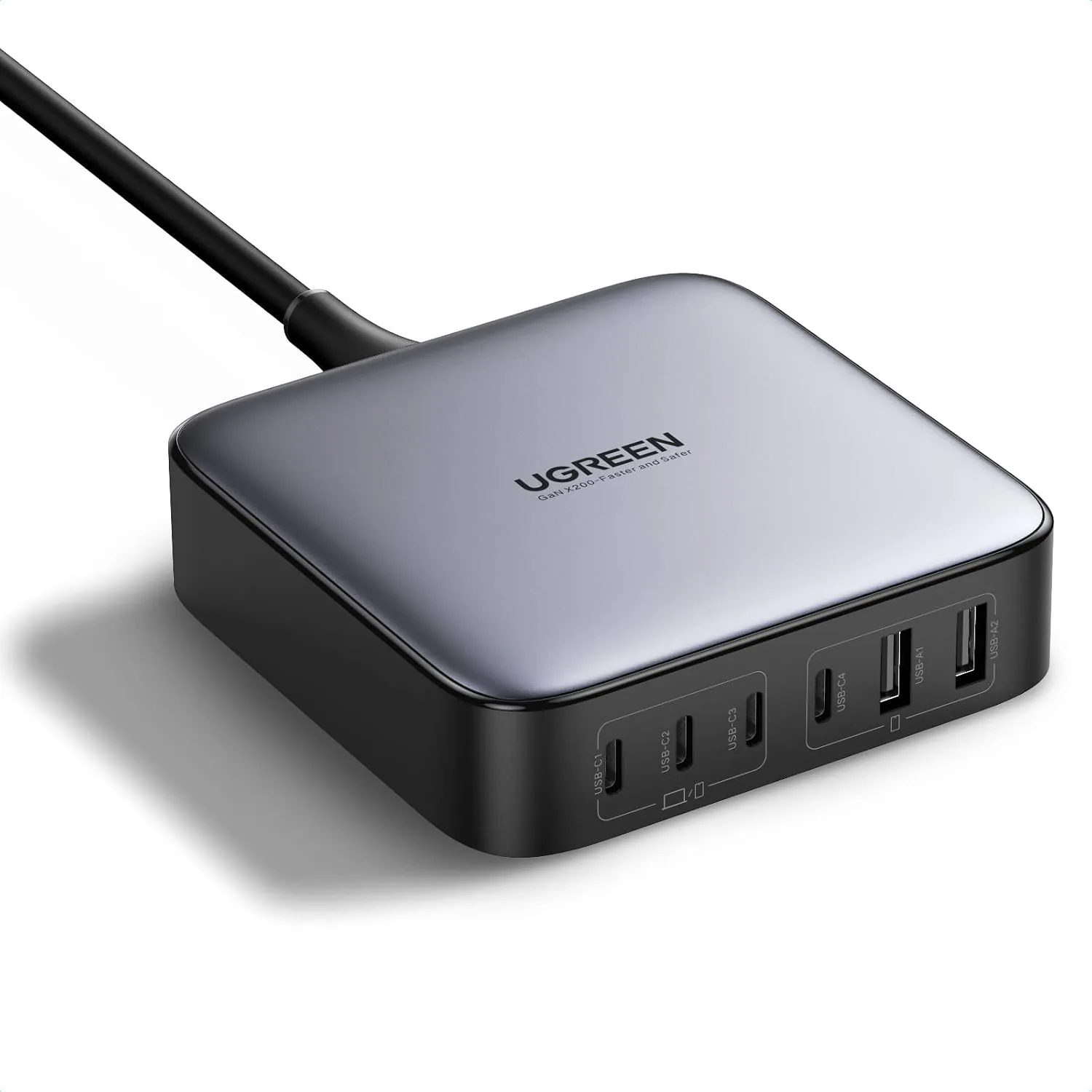 USD 52.48
UGREEN Nexode 200W GaN USB C Charging Station, 6-Port Desktop Charger for MacBook Pro/Air, iPad Pro/Air, iPhone 17/16/15 Series, Galaxy S25/S24 Ultra, Pixel 10/9, Steam Deck
High speed charging: Fully charge a 16in MacBook Pro in 1,5 hours, with the latest GaN ch…
View Details USD 89.99
Satechi 165W USB C 4-Port GaN Charging Station, 4 USB-C PD, Laptop Charger, for MacBook Air/Pro M5/M4/M3, iPad Air/Pro M5/M4/M3, iPad 11th gen, iPad mini, iPhone 17/16 Galaxy S25, Windows
Multi-Device Fast Charging - With 4 USB C PD ports, each with flexible power distribution…
View DetailsRelated Articles
- Massage Gun Buying Guide for Pre-Workout Muscle Activation
- Massage Gun Buying Guide for First-Time Percussion Therapy Buyers
- Desktop Charging Station Buying Guide for Dorm Room Device Charging
- Desktop Charging Station Buying Guide for Creative Workstations
- Desktop Charging Station Buying Guide for Outlet-Limited Workspaces
- Desktop Charging Station Buying Guide for Minimalist Desk Setups